
Sin Clean
Features
Below, each entry in the product UI is explained item by item: what it does, what you see, and where its boundaries are. The mapping between former site names and in-product names is in the "Terminology mapping" section of this page.
Mac Status
Entry location: the first entry on the left of the main window, subtitled "Health Overview".
What it does: shows local metrics read-only and gives a health score; the score only deducts points for four kinds of facts — storage pressure, sustained high load, memory pressure, and network disconnection.
What you see: an expandable "Score Basis" lists each deduction actually in effect (like "Storage pressure −18"); when there are none, it shows "No deductions are currently in effect".
Status evidence cards give the conclusion first, with an expandable "Basis and limitations"; trends draw no line and make no prediction when sample points are insufficient.
Where the boundary is: one-off CPU spikes, memory usage percentage, uptime, and core count never deduct points; the memory tier is decided solely by the system memory-pressure fact, while usage percentage and compression are shown as evidence only.
The trend area shows "Insufficient data; trend not shown for now" when samples are insufficient; the minimum drawable point count is 3.
The Mac Status page never cleans caches, never deletes files, and makes no network requests; when files need handling it directs you to the two subpages of "Space Cleanup".
Space Cleanup · Cleanup Items
Entry location: under "Space Cleanup" on the left are two subpages, "Cleanup Items" and "Space Analysis", switched within the same page container with ⌘1/⌘2; "Cleanup Items" is the default.
What it does: the main action is "Start Scan"; scanning reads metadata only; afterwards you check items one by one, and only after a second confirmation are items moved to the Trash.
What you see: the four scan locations and their risk levels — user and app caches (~/Library/Caches, Safe to Clean), user logs (~/Library/Logs, Safe to Clean), crash reports (~/Library/Application Support/CrashReporter, Safe to Clean), and downloaded installers (DMG/PKG/ZIP/XIP/ISO, Confirm Recommended, unchecked by default).
Candidate details offer "Show in Finder" and "Quick Look" so you can verify paths and contents yourself, and explain that items moved to the Trash can be put back manually in Finder.
Where the boundary is: nothing is checked for you when a scan finishes; the results list states "Not selected by default. Select a whole category, or review item by item."; highlighting a row is not selecting it — the UI states "Highlighting is for viewing evidence; only checking enters cleanup confirmation; neither changes the other."
Before execution you must pass the confirmation dialog "Move the selected files to the Trash?"; the dialog shows item count, estimated size, and a path summary, and explains that paths, file types, and file identities from scan time are re-verified before execution.
Space Analysis
Entry location: the second subpage of "Space Cleanup" on the left (⌘2). What it does: add folders at "Choose Scope" first, then use "Start Scan" as the main action; the button is disabled until a scope is selected.
What you see: the results area has three blocks — "Capacity Distribution", "Directory Tree", and "Large Files"; the directory tree can expand/collapse all, with sorting, type filter, and threshold controls.
Where the boundary is (Capacity Distribution): the denominator of the capacity bar means "total counted in this scan", not total disk capacity or whole-machine usage; when nothing was counted, the denominator type switches to "No capacity counted yet" instead of showing 0%.
Where the boundary is (Large Files): the threshold defaults to 100 MB and can switch among 50 MB / 100 MB / 500 MB / 1 GB; files exactly equal to the threshold are included.
Where the boundary is (scope): Space Analysis does not support analyzing the system root directory or entire volumes; adding a volume root is rejected with the message "Please choose a smaller folder inside the volume".
Where the boundary is (auto-selection): common scopes join only when you click them yourself; Sin Clean never auto-selects any scope and never opens the folder panel on its own.
Where the boundary is (read-only): the results page states verbatim that it only reads directory and file metadata within the selected scope and never moves, deletes, or modifies any file; "Clear Results" only clears results in the current session memory — it does not touch or delete directory contents.
Storage Whereabouts Diagnosis
What it does: consumes the same scan round's results from Space Analysis and explains where usage went and how much the statistics cover, as a read-only derived layer.
What you see: explanations of usage categories and the range actually examined in this scan round; conclusions cover only the range examined this time.
Where the boundary is: no new scan, no persistence, no networking, and no new execution entry; when there are no results it asks you to complete a scan first and states that diagnosis will not scan again.
提示
Former site name "Space Diagnosis" → in-product name "Storage Whereabouts Diagnosis" (a sibling panel inside the Space Analysis page).
Space Change
What it does: puts category totals from two scans of the same scope side by side and shows the deltas.
What you see: deltas appear only when two scans meet all comparability conditions — both completed normally without cancellation, identical anonymous scope identifier, identical classification-rule version, identical capacity-counting basis, identical coverage status, and no integer overflow / negative values / corrupted records.
Where the boundary is: if any condition fails it shows "Not comparable for now" with the specific reason and outputs no delta numbers; this version does not compute a common comparable subset of partial scopes.
Where the boundary is (attribution): it only reports deltas in scanned category totals — it does not infer which app produced them, what you did, or credit Sin Clean's cleaning; the receipt's succeeded capacity, the disk's free-space change, and these category totals are three independent sets of numbers that never reconcile against each other.
Record boundary: Space Change keeps at most the most recent 30 successful scan records locally and never beyond 90 days; records contain only the salted anonymous scope identifier, capacity and item count for each of the seven categories, scan completion time, coverage and precision flags, and record-format and rule versions — never any path, file name, directory name, app name, or file listing.
提示
Former site name "Change Tracking" → in-product name "Space Change" (the second read-only panel inside the Space Analysis page, not a standalone entry).
Deep Uninstall
What it does: a five-step flow — scan app bundles in /Applications and ~/Applications; read version, Bundle Identifier, and code signature; check only fixed-path leftovers whose Bundle Identifier matches exactly; read-only verification of login items, agents, helper tools, and install receipts; finally move to the Trash after a second confirmation — never permanent deletion.
What you see (Footprint Overview): four sections titled "App Bundle", "Attributable User-Level Leftovers", "Read-Only Associated Items", and "Unreadable or Not Safely Attributable"; the latter two show counts only, not sizes.
What you see (Check Completeness): a four-state capsule — Full Check / Partial Check / Cannot Determine Safely / Not Checked; when judged "Cannot Determine Safely", no size numbers are shown.
Where the boundary is (matching): fuzzy matching is explicitly rejected — a file name containing the app's name never counts as a leftover; only fixed paths with an exactly matching Bundle Identifier are shown, and all leftovers are unchecked by default.
Where the boundary is (read-only area): the "Login Items & Background Associations" block is marked read-only; external background items and install receipts are never removed automatically; only embedded login items inside the app bundle go to the Trash together with the app bundle.
Where the boundary is (execution): a running app is refused with a prompt to quit it first and retry; the uninstall plan always handles the app bundle first — if the bundle fails, all associated files are kept.
Where the boundary is (terminology): "Full Check" precisely means "the scan scope declared by this version has been fully verified"; it does not mean no other files exist anywhere on the Mac.
提示
Former site name "App Overview" → in-product name "Footprint Overview" (a panel inside the Deep Uninstall page).
Post-Uninstall Recheck
What it does: after uninstall completes, it re-checks nine exact paths and read-only associated locations using the app identity frozen at uninstall time.
What you see: verification results presented path by path; found items are never auto-checked and never enter a new execution plan.
Where the boundary is: the panel is marked read-only; the recheck moves no files.
The product defines "recheck" and "execution" separately: a recheck produces no execution items.
Operation History
What it does: one place to review completed disk cleanups and app uninstalls.
What you see: completed operations with their read-only details; when nothing has ever been executed it shows "No operation records yet".
Where the boundary is: the page is marked read-only; history is for review only — you cannot execute anything from it, nor restore past selections.
Where the boundary is (clearing history): "Clear History" only deletes the history summaries and read-only details Sin Clean keeps locally; it never moves or deletes files in the Trash; canceling or pressing Escape changes no records.
Export Plan and Execution Receipt
What Export Plan does: exports a read-only TXT review file whose line 1 is the title "Sin Clean Operation Plan" and line 2 declares "Read-only review file; not an authorization to execute."; after a successful export, selections, ignore rules, and execution state remain unchanged.
What you see in an execution receipt: receipt ID, plan ID, domain, start and finish times, planned item count and estimated size, succeeded item count and succeeded size, whether the user aborted, per-item details, and warnings.
Per-item status is a five-value set — succeeded, failed, skipped, aborted, not executed; partial failures are presented per item status.
Where the boundary is: the receipt explicitly points out an easily misunderstood fact — space occupied by files still in the Trash may not be freed yet, so available space does not fully increase immediately.
Settings and Ignore List
What you see: the Settings page has five groups — "Status Monitoring", "Scan Performance", "Scan Locations", "Privacy & Security", and "Space Change Records" — plus areas for System Health Alerts, Permissions, and the Ignore List.
Scan Locations: the two app directories /Applications and ~/Applications can each be toggled, but at least one must stay on; changes take effect on the next scan.
Ignore List: precisely ignore an item in candidate details or app details; ignoring only affects the display and action layers after a scan completes; the list can be managed or cleared.
Where the boundary is (matching): ignore rules do exact matching only; paths are normalized lexically without resolving symlinks.
Where the boundary is (precondition): if the Ignore List fails to load, the app explicitly refuses to modify the list or execute cleanup.
Where the boundary is (restore defaults): "Restore Default Settings" only restores refresh, scan scope, and performance settings; it never clears ignore rules.
Clearing entries: clearing Space Change records requires a second confirmation and is irreversible — recording restarts from the next successful scan; there are also Clear Trend Data, Clear Operation History, and Clear All Ignore Rules.
Visual evidence and terminology mapping
The three images below show 1.0.0-beta.2 build 27 running on a real device (after the 2026-10 Space Analysis redesign); the data is real local scan output. Each image can be clicked to enlarge the original.
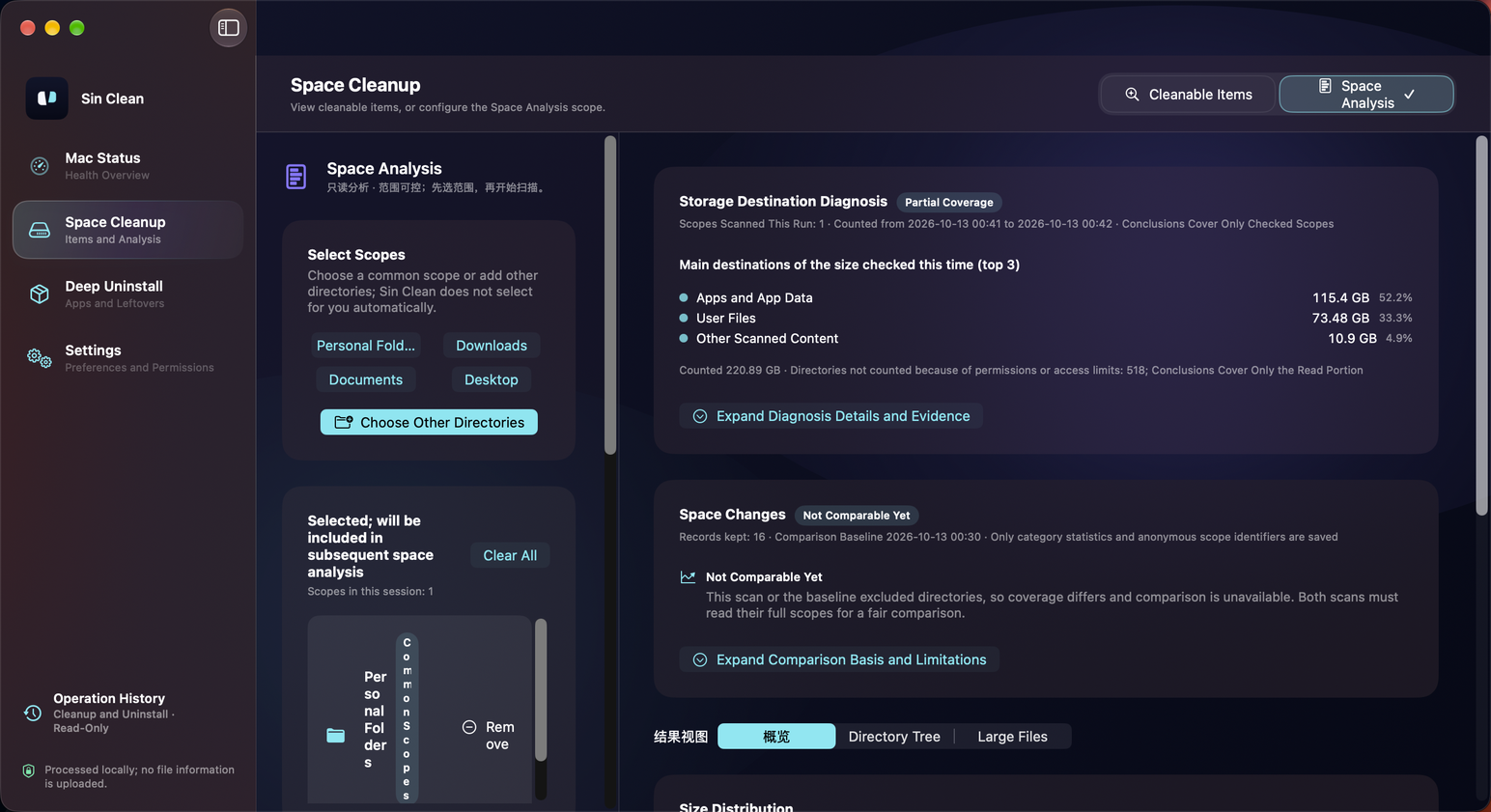
Space Analysis overview Space Analysis · 1.0.0-beta.2 build 27 on a real device · Two columns: scope and scan controls on the left; diagnosis, change, and overview on the right 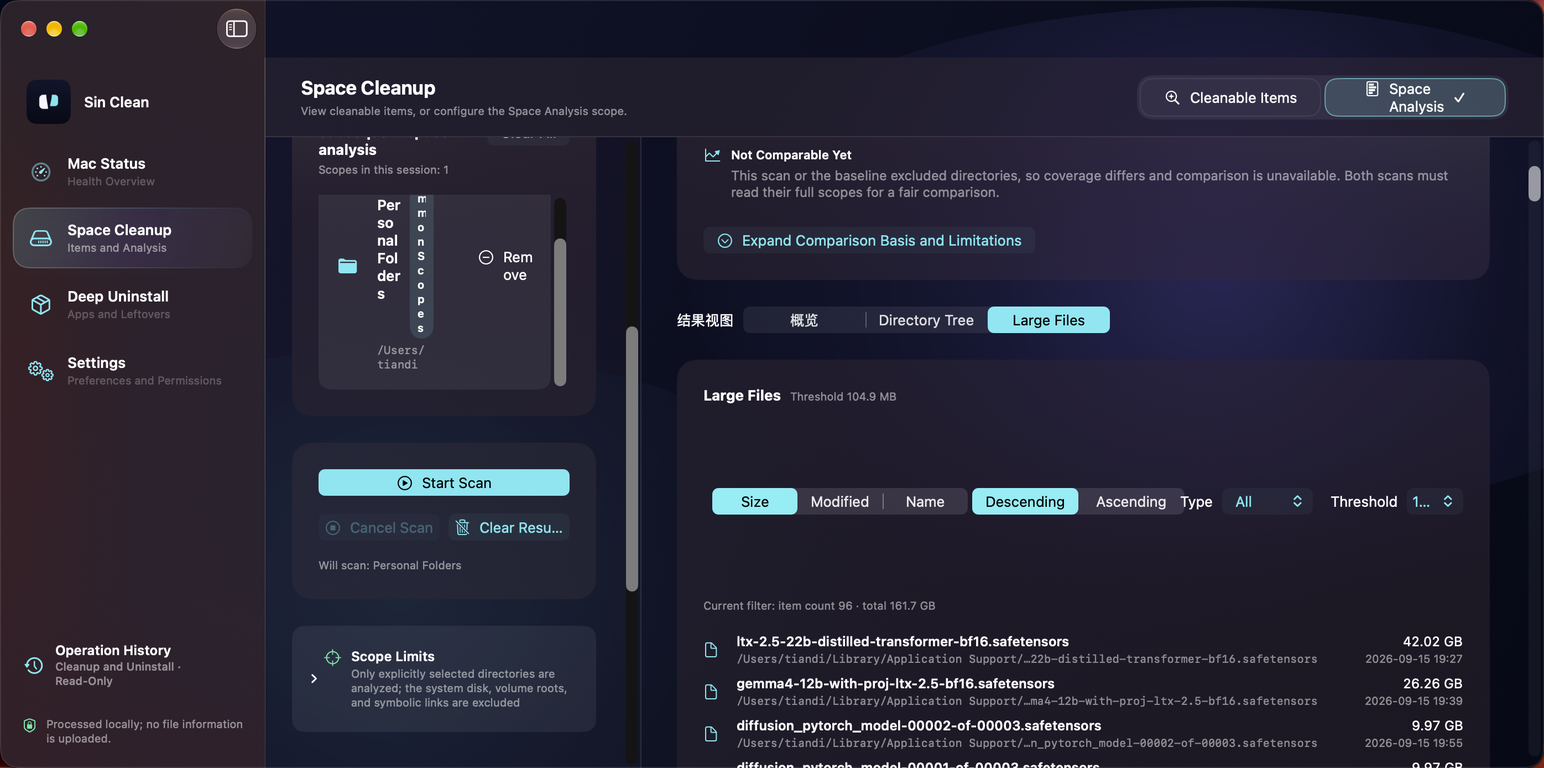
Start a scan from any window Space Analysis · Short window (694pt) on a real device · "Start Scan" remains fully visible and usable — a scan can be started at any window size 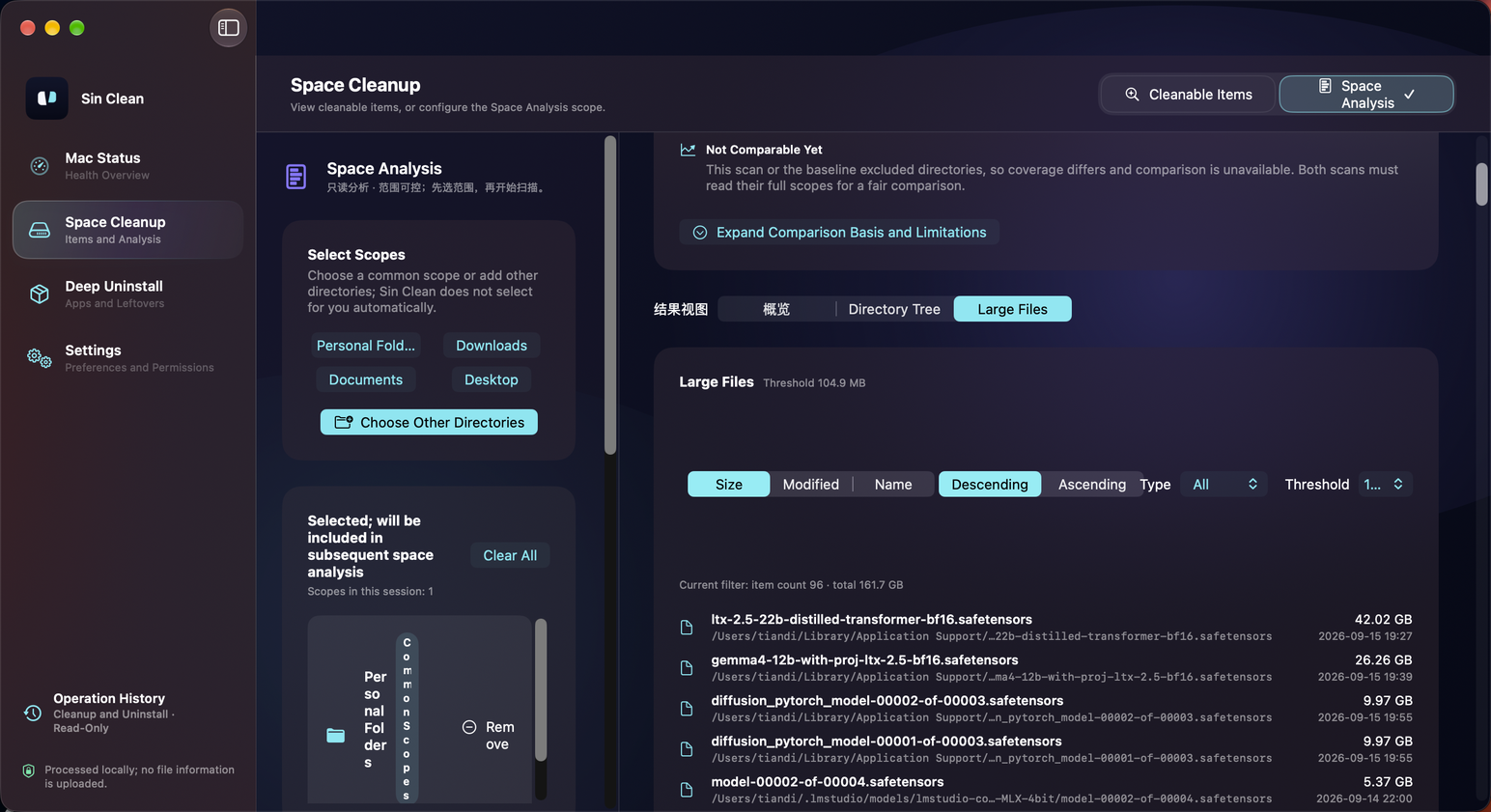
Large Files list Results view · Large Files · 1.0.0-beta.2 build 27 on a real device · Sorted by size descending, with sorting and threshold controls
Visual evidence and terminology mapping 数据表
| Former site name | In-product name | Location |
|---|---|---|
| Space Diagnosis | Storage Whereabouts Diagnosis | A sibling panel inside the Space Analysis page |
| Change Tracking | Space Change | The second read-only panel inside the Space Analysis page |
| App Overview | Footprint Overview | A panel inside the Deep Uninstall page |
提示
Renames are only for alignment: readers must be able to find entries in the app by name, so the whole site follows in-product names; former names are kept only as a cross-reference.
Feature boundaries
- Space Analysis does not support the system root directory or whole-volume analysis; adding a volume root is rejected.
- Space Analysis never auto-selects a scope; without a scope no scan starts, and it never opens the folder panel on its own.
- "Manual Handling" in Space Analysis offers no permanent deletion, no select-all, and no bulk emptying, and never moves any file during analysis or selection.
- A running app is refused for uninstall; if the app bundle is not successfully moved to the Trash, all associated files are kept.
- External background items and install receipts are never removed automatically.
- There is no silent execution anywhere: scans only read information, and candidates are unselected by default.
- Only four user directories can enter the cleanup list: caches, logs, crash reports, and Downloads.
- Entries that are not scannable directories are recorded as coverage gaps and skipped; locations unreadable due to permissions or file-state changes never enter the cleanup list.
- Space Change outputs no delta numbers when comparability conditions are not met.