
Sin Clean
See where your storage goes
Sin Clean is a local tool: it scans your disk read-only and lists storage usage, cleanup candidates, and app leftovers item by item, so you decide what to act on. There is only one action — moving the selected items to the system Trash.
- Free forever · MIT open source
- Developer ID signed and notarized
- Read-only · on-device · nothing uploaded
macOS 14.0+ · Apple Silicon (arm64); DMG · 3.5 MB · 1.0.0-beta.2 build 27, signed and notarized; permanently free, MIT open source.
Look first, then decide
The value proposition: where your disk space went, what can be cleaned, and which files uninstalling an app touches — listed item by item for you to see; scanning is read-only, candidates are unselected by default, and execution only goes to the system Trash.
- Main action 1: Get the software — 1.0.0-beta.2 (build 27) is publicly released, via two channels: the direct DMG link on this site and the GitHub repository.
- Main action 2: Read the User Guide — walk through the product in its real order, including the three gates and the boundaries before actual execution.
提示
Site position: free and open source, publicly released. This site offers a direct download; the source code is hosted on GitHub.
Four verifiable facts
- Read-only scanning: scans only read information; the directory-open flags in the codebase contain no write flags.
- Unselected by default: the cleanup selection starts empty; items can enter cleanup confirmation only after you check them yourself.
- Trash only: the entire codebase has exactly one system Trash call site, and no permanent-deletion entry for user files.
- Data stays on your Mac: records such as health trends are kept in the local Application Support directory and can be cleared in Settings.
These four are not rhetoric but the product's core behavioral contract: scanning only reads information; candidates are unselected by default; execution only moves confirmed selections to the system Trash, never permanently deleting them; health metrics, scan results, and operation records are all processed locally and never uploaded.
Feature overview
The main window has four entries on the left: Mac Status, Space Cleanup, Deep Uninstall, and Settings; a separate "Operation History" sits at the lower left. Their on-screen titles and subtitles are "Mac Status / Health Overview", "Space Cleanup / Items & Analysis", "Deep Uninstall / Apps & Leftovers", and "Settings / Preferences & Permissions".
- Mac Status: the health score only deducts points for four kinds of facts — storage pressure, sustained high load, memory pressure, and network disconnection; the score basis lists each deduction actually in effect; when there are none, it shows "No deductions are currently in effect".
- Status evidence cards give the conclusion first, with an expandable "Basis and limitations"; trends draw no line and make no prediction when sample points are insufficient.
- Menu bar panel: clicking the menu bar icon opens a small windowed panel with live metric cards for CPU load, disk, memory, battery, and Wi-Fi, plus two entries: "View Cleanup Items" and "Open Full App ⌘O".
- First-run guide: three screens ("Look Carefully First" / "Does Only One Thing" / "Permissions on Demand"); the guide itself requests no permissions and can be revisited later in Settings.
- Space Cleanup · Cleanup Items: scans and lists cleanup candidates; it is one of two sibling subpages next to "Space Analysis", switchable with ⌘1/⌘2; "Cleanup Items" is the default.
- The four scan locations of Cleanup Items: user and app caches (~/Library/Caches, Safe to Clean), user logs (~/Library/Logs, Safe to Clean), crash reports (~/Library/Application Support/CrashReporter, Safe to Clean), and installers in the Downloads folder (DMG, PKG, ZIP, XIP, ISO — marked "Confirm Recommended" and unchecked by default).
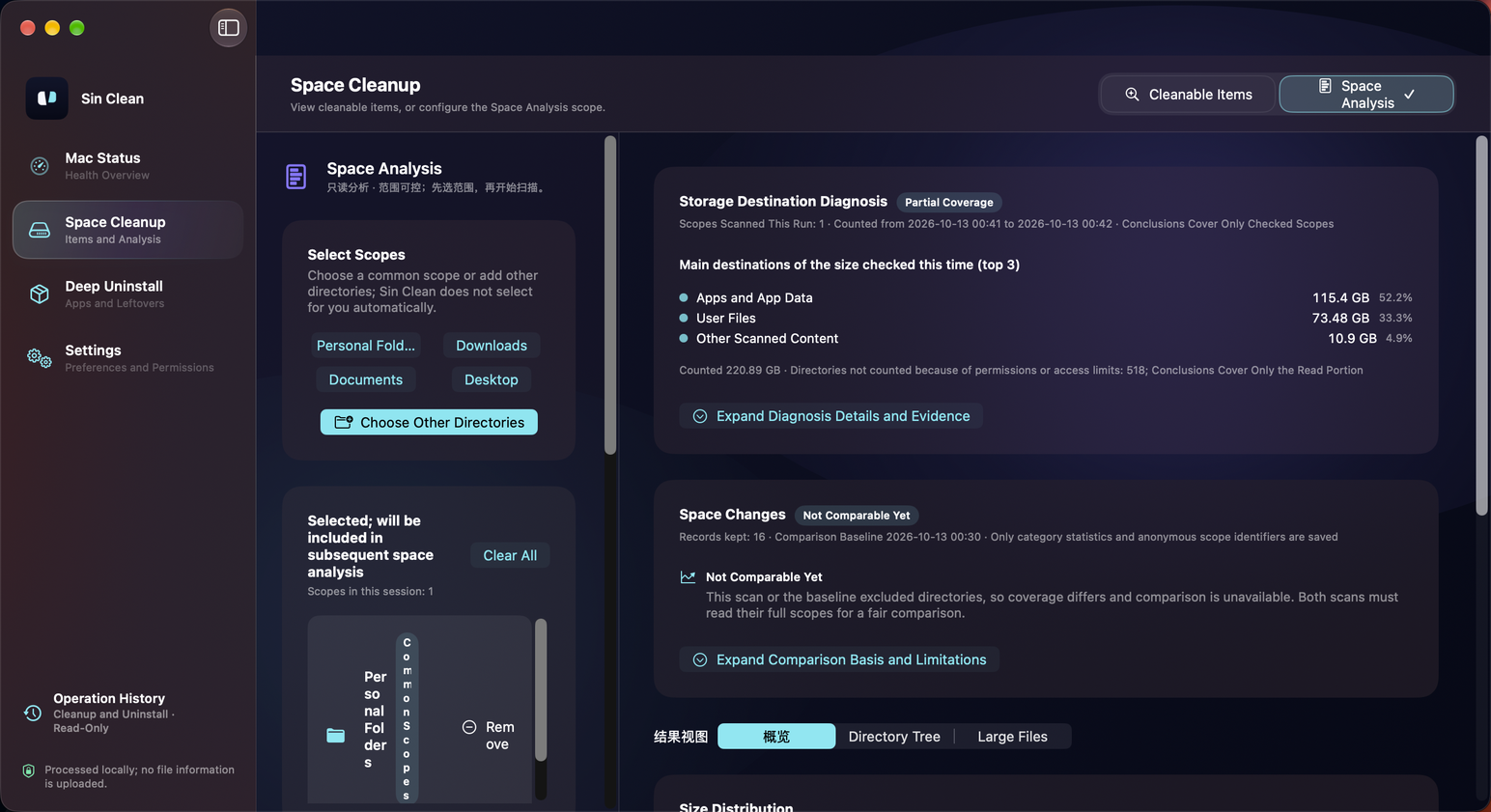
- Space Analysis: add folders to the scope before scanning; the results area has three blocks — "Capacity Distribution", "Directory Tree", and "Large Files"; the directory tree can expand/collapse all, with sorting, type filter, and threshold controls; the Large Files threshold defaults to 100 MB and can switch among 50 MB / 100 MB / 500 MB / 1 GB.
- Storage Whereabouts Diagnosis: a read-only derived panel inside the Space Analysis page; it only consumes the same scan round's results — no new scan, no persistence, no networking.
- The site previously called it "Space Diagnosis"; its name in the product UI is "Storage Whereabouts Diagnosis".
- Space Change: compares category totals between two comparable scans of the same scope; when conditions are not met it shows "Not comparable for now" with the specific reason, and outputs no delta numbers. The site previously called it "Change Tracking".
- Settings and Ignore List: the Settings page has five groups — Status Monitoring, Scan Performance, Scan Locations, Privacy & Security, and Space Change Records — plus areas for System Health Alerts, Permissions, and the Ignore List; you can precisely ignore an item in candidate details or app details; ignoring only affects the display and action layers after a scan completes.
- Deep Uninstall: scans app bundles in /Applications and ~/Applications, reads version, Bundle Identifier, and code signature; only checks fixed-path leftovers whose Bundle Identifier matches exactly; read-only verification of login items, agents, helper tools, and install receipts; finally moves to the Trash after a second confirmation.
- Footprint Overview and Check Completeness: Footprint Overview presents four layers — "App Bundle", "Attributable User-Level Leftovers", "Read-Only Associated Items", and "Unreadable or Not Safely Attributable"; "Check Completeness" is a four-state capsule — Full Check / Partial Check / Cannot Determine Safely / Not Checked. The site previously called it "App Overview".
- Login items and background associations: this block is marked read-only; external background items and install receipts are never removed automatically — only embedded login items inside the app bundle go to the Trash together with the app bundle.
- Post-uninstall recheck: after uninstall completes, it re-checks nine exact paths and read-only associated locations using the app identity frozen at uninstall time; the recheck is read-only and moves no files.
- Operation History: one place to review completed disk cleanups and app uninstalls; the page is marked read-only — history is for review only.
- Export Plan and Execution Receipt: exporting a plan produces a read-only TXT review file (line 2 declares "Read-only review file; not an authorization to execute."); the execution receipt records receipt ID, plan ID, start/finish times, planned item count, succeeded item count, and more.
提示
The product UI is authoritative for the full feature set. The mapping between former site names and in-product names is listed on the Features page.
Explanation first, then action: a four-step flow
Choose a scope or scan directly
Space Analysis requires you to add folders to "Choose Scope" yourself; Sin Clean never auto-selects any scope and never opens the folder panel on its own.
Read-only scan
Scans open directories with read-only and non-blocking flags only — no write flags; the main action "Start Scan" in "Cleanup Items" likewise reads metadata only.
Review item by item
Nothing is checked for you when a scan finishes; the results list states "Not selected by default. Select a whole category, or review item by item."; highlighting a row is not selecting it.
Move to Trash after confirmation
Execution happens only after you check items yourself and pass the confirmation dialog "Move the selected files to the Trash?"; the dialog shows item count, estimated size, and a path summary.
Before actual execution, every item is re-verified: whether deviceID and inode still match the scan snapshot, and whether logical size and modification time (seconds and nanoseconds) have changed; any mismatch is safely skipped or requires rescanning.
Real-device screenshots
The three screens below come from a real device running 1.0.0-beta.2 build 27 (after the 2026-10 Space Analysis redesign). The data shown is real local scan output; scanning is read-only and never moves, deletes, or uploads any file.
Space Analysis overview Space Analysis · 1.0.0-beta.2 build 27 on a real device · Two columns: scope and scan controls on the left; diagnosis, change, and overview on the right 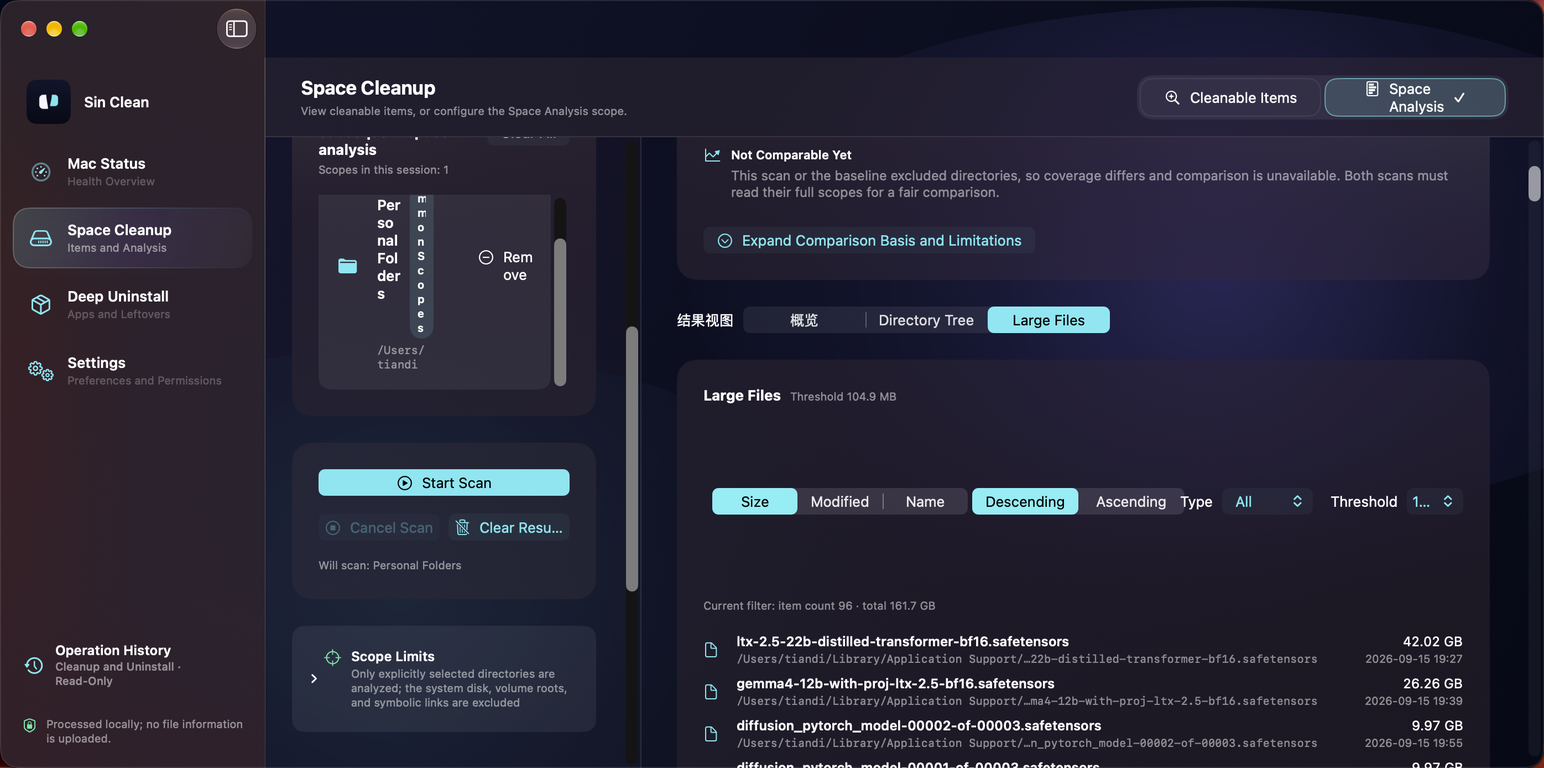
Start a scan from any window Space Analysis · Short window (694pt) on a real device · "Start Scan" remains fully visible and usable — a scan can be started at any window size 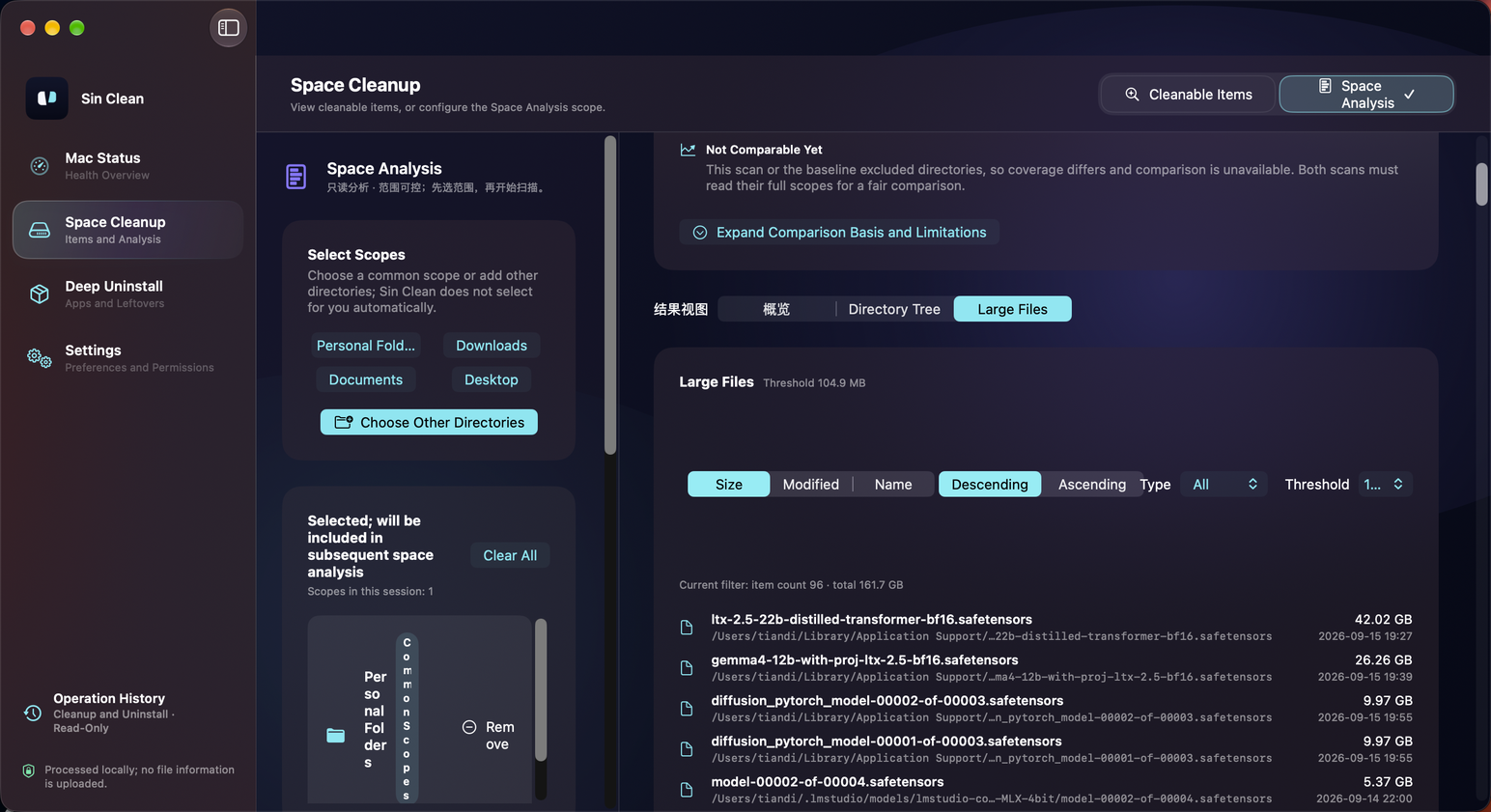
Large Files list Results view · Large Files · 1.0.0-beta.2 build 27 on a real device · Sorted by size descending, with sorting and threshold controls
提示
The screens are real-device captures of build 27; scan results are kept only in the current local session, never uploaded, so no sample-data disclaimer is needed when showing them.
Privacy and permissions summary
- Only two optional permissions: Full Disk Access (called "Read Protected Directories" in the app) and Notifications (called "Send Alerts" in the app); neither is requested at launch or first use.
- Neither permission blocks usage: without Full Disk Access, protected directories are excluded from statistics and the UI marks how many were not counted; without Notifications, alerts do not pop up, but evidence cards and trends update as usual.
- Only two user actions make network requests: clicking "Check for Updates…" on the About page, and the confirmed "Download and Install"; both connect only to blacstar7.github.io.
- The product declares no telemetry, no crash reporting, no third-party analytics, and no data upload.
- Privacy copy follows a fixed banned-word list: any phrasing that amounts to an unverifiable absolute promise is forbidden.
Pricing and system requirements
- Price
- Permanently free; no paid plans, no feature costs anything
- Marketing version
- 1.0.0-beta.2 (build 27, final-verified dual-channel release on 2026-10-12)
- System version
- macOS 14.0 or later
- Processor
- Apple Silicon (arm64); Intel support undecided
- Installed size
- About 3.5 MB
- Memory and disk
- No additional requirements
- Download
- Open: direct DMG on this site plus the GitHub open-source repo — two channels
Version and license wording: the public version is 1.0.0-beta.2 (build 27), permanently free and MIT open source; the in-app update channel is internal.
System requirements wording: minimum system macOS 14.0; the current build supports Apple Silicon (arm64) only, Intel support undecided; no extra memory or disk requirements — this page states no speculative numbers.
Download wording: this site provides a direct DMG link; source code and releases are hosted in the GitHub open-source repo (Blacstar7/sin-clean); both channels serve identical content.
FAQ
- Q: Does Sin Clean modify system files? A: Scans only read directory and file metadata, with no write flags; the only action is moving confirmed selections to the system Trash.
- Q: Does it need the network? A: Only two actions you trigger yourself go online — clicking "Check for Updates…" and the confirmed "Download and Install" — and they connect only to blacstar7.github.io. Otherwise the app process holds no network sockets.
- Q: Can files moved to the Trash be restored? A: Yes, via Finder before you empty the Trash; but space occupied by files still in the Trash may not be freed yet, so available space does not fully increase immediately.
- Q: Where do I download Sin Clean? A: The Download page on this site offers a direct DMG link; the GitHub open-source repo (github.com/Blacstar7/sin-clean) offers the same installer and the full source code.
- Q: Why does the UI show "build N"? A: The version line template is "Version <version> (build <build>)"; the current public release is 1.0.0-beta.2 (build 27, 2026-10-12).
- Q: Which locations get scanned? A: Cleanup Items only checks user and app caches, user logs, crash reports, and installers in the Downloads folder; Space Analysis only scans folders you add yourself to "Choose Scope".
- Q: Where are "Storage Whereabouts Diagnosis", "Space Change", and "Footprint Overview"? A: They are panels inside the Space Analysis page and the Deep Uninstall page respectively — these three in-product names are the ones to use.
- Q: Are there system requirements? A: macOS 14.0 or later; the current build supports Apple Silicon (arm64) only; installed size about 3.5 MB; no extra memory or disk requirements.
Get Sin Clean
Free forever · MIT open source · macOS 14.0+ (Apple Silicon). Build 27 is signed and notarized, via the direct link on this site and GitHub.
DMG · 3.5 MB · 1.0.0-beta.2 build 27